
GA4 Setup
Integrate Google Analytics 4 (GA4) with your FastSpring popup, embedded, or web checkout to track purchases and conversion events.
If you use Google Tag Manager to manage GA4, do not set up a separate GA4 integration. Follow the Google Tag Manager guide instead.
Prerequisites
Before setting up the integration, complete the following:
- Create a Google Analytics account and copy your Measurement ID.
- Add the GA4 snippet to your website following Google's setup documentation.
- If you use a popup or embedded checkout, review cross-domain tracking before proceeding.
Set up the integration
Configure for all checkouts
Use this method if you want to apply the same GA4 property across all of your FastSpring checkouts.
- In the FastSpring app, navigate to Integrations > Extensions > Google Analytics.
- Click Setup.
- Enter your Google Analytics Measurement ID and click Enable.
Configure for individual checkouts (optional)
Only follow this step if you need different Measurement IDs for different checkouts. Otherwise, the setup above applies to all checkouts automatically.
- In the FastSpring app, navigate to the checkout you want to configure and click Settings.
- In the left menu, click Analytics Integration.
- Under Google Analytics Integration Behavior, select Use custom Google Analytics property ID for this checkout.
- Enter your Measurement ID in the Custom Google Analytics property ID field and click Save.
Cross-domain tracking
Cross-domain tracking ensures that customer sessions are correctly attributed across your site and the FastSpring checkout. Configuration varies by checkout type.
Web checkouts
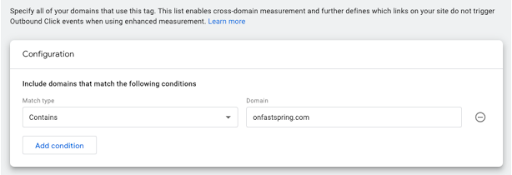
Enable cross-domain measurement in Google Analytics to prevent Outbound Click events from breaking the session when a customer navigates to the FastSpring checkout.
- In your Google Analytics account, go to Admin > Data Streams.
- Select the data stream you want to modify.
- Under the Google tag section, click Configure tag settings.
- Under Settings, select Configure your domains.
- Add a new row with the following values:
- Match type: Contains
- Domain:
onfastspring.com
- Repeat to also add
paypal.com.
Popup and embedded checkouts
When using the Store Builder Library (SBL) for popup or embedded checkouts, include the data-decorate-callback attribute in your FastSpring script tag to pass GA4 session data through the checkout.
1. Add the attribute to your FastSpring script:
<script
  id="fsc-api"
  src="https://d1f8f9xcsvx3ha.cloudfront.net/sbl/0.9.2/fastspring-builder.min.js"
  type="text/javascript"
  data-storefront="yourexamplestore.onfastspring.com/popup-yourexamplestore"
  data-decorate-callback="decorateURL">
</script>
2. Add the following function to your page, replacing <MEASUREMENT_ID> with your own:
function decorateURL(url) {
  window.clsid = {
    client_id: '',
    session_id: ''
  };
  gtag('get', '<MEASUREMENT_ID>', 'client_id', function(r) {
    window.clsid.client_id = r;
  });
  gtag('get', '<MEASUREMENT_ID>', 'session_id', function(r) {
    window.clsid.session_id = r;
  });
  var _pl = '&clientId=' + window.clsid.client_id + '&sessionId=' + window.clsid.session_id;
  return url + '?' + _pl;
}
Troubleshooting
If you're seeing data discrepancies or missing events, use the following resources:
- Troubleshoot data in your reports — Google's guided troubleshooter for report data issues.
- Troubleshoot tag setup and no-data issues — diagnose missing data caused by tag configuration problems.
- Google Analytics Debugger — Chrome extension for inspecting GA4 events in real time.
- Tag Assistant — Chrome extension for validating tag configuration.
Ad-blocking tools can prevent up to 10–15% of transactions from being reported. Absolute metrics like visitors and pageviews are affected, but relative metrics like conversion rates remain accurate. For server-side tracking that bypasses ad blockers, see Google Measurement Protocol.
Updated 4 months ago