
Manage quotes and invoices
Track the status of your B2B offers, filter orders by source, and manage invoice details.
Monitor the lifecycle of your B2B offers from negotiation to revenue. The FastSpring app allows you to track quote statuses, isolate quote-driven orders from standard e-commerce traffic, and intervene manually when necessary (e.g., processing fulfillment overrides or updating PO numbers).
The following user roles can manage digital invoicing orders:
- Store Sales Representative
- Store Sales Representative (With Coupons)
- Support Representatives
- Store Administrator/Administrators
View manage roles and permissions to learn more. With the appropriate permissions, you can access the Sales menu to begin monitoring deal progress.
Quote status
FastSpring tracks the lifecycle of every quote to help you monitor conversion. You can view the current status of an offer on its details page:
- Open: The quote has been created but not yet accepted. It remains open until the customer accepts it, you cancel it, or it expires.
- Pending Payment: The prospect has accepted the quote, but payment has not been received. Click View Order to see additional information.
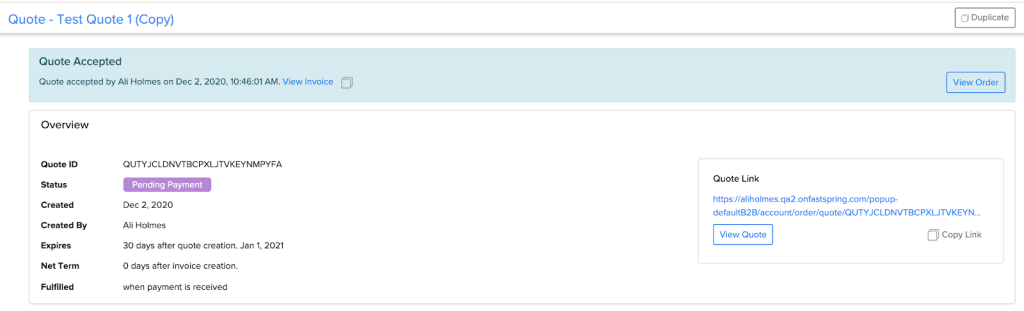
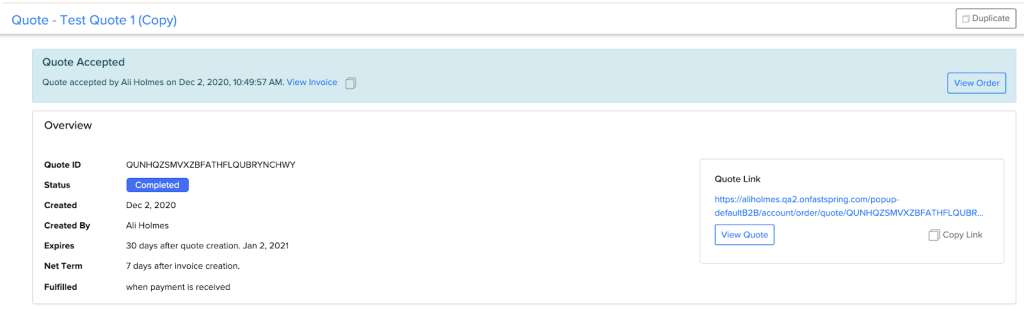
- Completed: The prospect has successfully paid for the order.
- Expired: The quote remained in the Open status past its configured expiration date. Customers can no longer view the quote (though you can duplicate it to create a new one). Note: Accepted quotes do not expire.
- Canceled: An administrator or sales rep manually canceled the quote. Customers can no longer view the quote.

Filter orders
You can filter the Orders page to distinguish between self-service e-commerce orders and orders generated via quotes.
To view only orders that originated from a B2B quote:
- In the FastSpring app, go to Sales > Orders.
- In the All Orders tab, click the All Sources dropdown.
- Select Quote Driven.
- (Optional) Apply additional filters to specify the results further.
To view only standard store orders (excluding quotes):
- In the FastSpring app, go to Sales > Orders.
- In the All Orders tab, click the All Sources dropdown.
- Select E-Commerce.
- (Optional) Apply additional filters to specify the results further.
Quotable products
You can customize which products can be added to a quote by tagging them. By default, all products in your catalog are Quotable.
To make a product Non-Quotable:
- In the FastSpring app, go to the product details page.
- Click the Manage Product dropdown (top right).
- Toggle the Quotable dropdown to Turn
OffQuotable. Changes are saved automatically.
Tip: This change is not permanent. You can repeat this process to make a product quotable again in the future.
Invoice management actions
Use the following actions to manage the order lifecycle after a quote is accepted.
Process manual fulfillment
FastSpring automatically releases fulfillment after a successful transaction (or upon acceptance, depending on quote settings). However, you can override deliver-after-payment settings to release fulfillment immediately.
- In the FastSpring app, go to the Sales > Orders page.
- Select the Pending Payment order to view details.
- Under Overview > Item Details, click Process Fulfillment. The Process Order Fulfillment modal opens.
- Click Process Fulfillment. FastSpring sends the fulfillment email to the prospect immediately.
Note: This does not change the payment status of the order.
Add a PO number
After a prospect accepts a quote and creates an invoice, you (or the prospect) can add a Purchase Order number to the document.
- In the FastSpring app, go to Sales > Quotes.
- Select the accepted or quote. If no invoice exists yet, click Generate Invoice on the quote details page.
- On the quote details page, click View Invoice.
- On the invoice, click +Add PO Number.
- Enter the number and click Save.
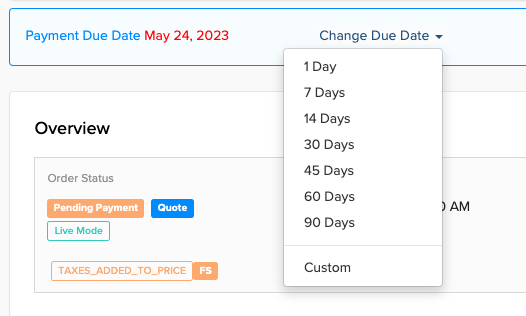
Edit invoice due date
You can edit the due date on an active invoice if it is Unpaid and has Not Expired.
- In the FastSpring app, go to Sales > Orders > Pending Payment tab.
- Select the order/invoice.
- Click Change Due Date.
- In the dropdown menu, select a method:
- Net Terms: Select a predefined net term (e.g., Net 30).
- Custom Date: Select a specific future date from the calendar.
- Click Save.
Export quote data
You can export the details of all existing quotes in your store via the Data Exports tool. For more information, see Data Exports.
- In the FastSpring app, go to Reports > Data Exports.
- Click Create Data Export in the top right.
- In the Report Name field, enter a name for the export.
- In the Report Type dropdown, select Quote Export.
- (Optional) Adjust the language, site, and date range filters.
- Click Create.
The export will appear in the list with a Processing status. Once complete, the page refreshes automatically, allowing you to preview, download, or delete the file.
Updated 10 months ago